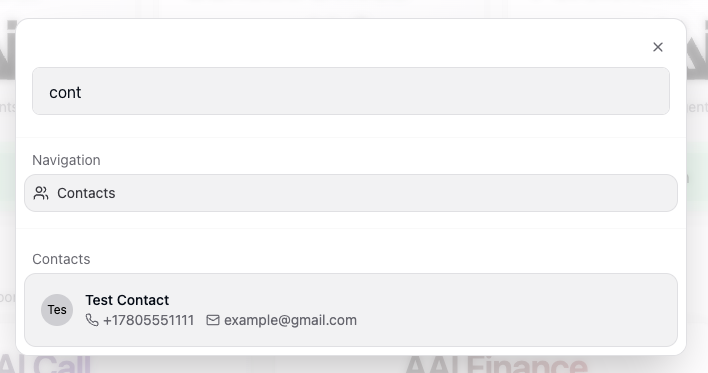
Contacts Overview
Purpose: Source of truth for contacts in the system.
Explanation: Use Contacts to search, segment, and maintain clean records; launch bulk actions (e.g., Bulk SMS) on selected contacts.
When to use: Manage records, segment lists, and launch bulk actions.
Prerequisites: Proper role permissions to see all users contacts, otherwise you will just see your own contacts.
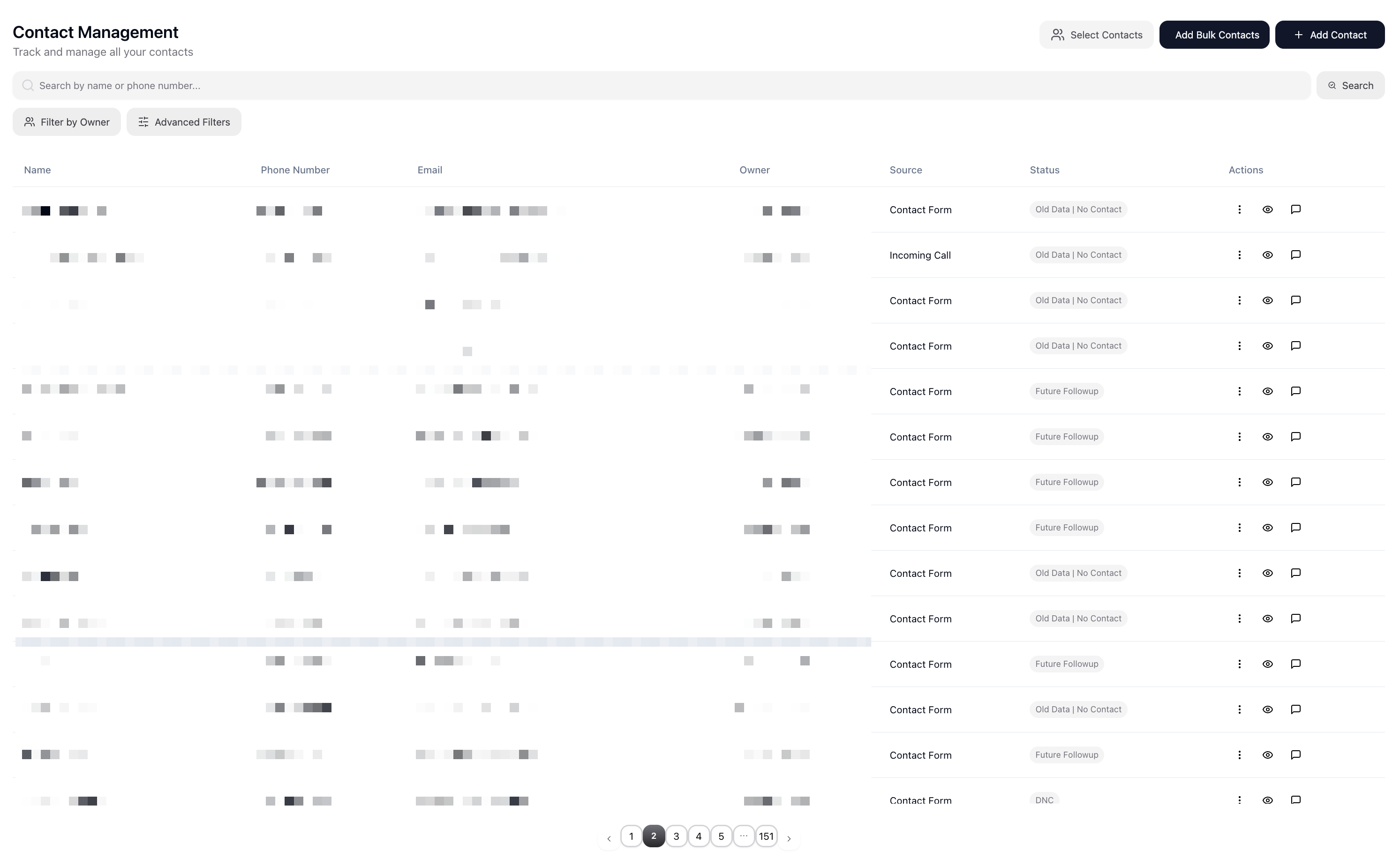
Quick start
Section titled “Quick start”- Search

- Filter (owner/source/advanced) to find your segment.

- Add a contact from the toolbar.

- Toggle Selection Mode, select contacts, and run bulk actions.
- Page through results and refine filters as needed.

Actions
Section titled “Actions”-
Use search and filters (Owner, Source, Pipeline Stages) to target the right set.
-
Click Add/Edit to open the contact modal. If the form data is still loading, wait until it’s ready.
-
Toggle Selection Mode to enable multi-select; select contacts.
-
Run bulk actions from the toolbar:
- Bulk SMS
- Move status (pipeline stage)
- Delete
-
Use page selector to navigate large result sets.
Quality checks
Section titled “Quality checks”- Required fields present (e.g., firstName, lastName, phoneNumber) and valid.
- Duplicates avoided/merged; statuses reflect current stage.
Common issues + fixes
Section titled “Common issues + fixes”- Contact form not opening yet → wait for “loading form data” to finish; then retry.
- Bulk SMS button disabled → select at least one contact first.
- Filters not applying → clear basic/advanced conflicts and re-apply.
- Can’t create a new contact → Possible another team member is already working the lead (please check notification at bottom of screen)
Shortcuts/Links
Section titled “Shortcuts/Links”- Page: /contacts
- URL: https://app.automotiveai.ca/contacts
Hotkeys
Section titled “Hotkeys”- command/control + K: contacts