Conversations Overview
Purpose: The central inbox for all customer messaging.
Explanation: Work here 90% of the time, reply, assign, and move conversations forward using Agents, Templates, and Automations. Supports SMS, Facebook (In Beta), and Webchat (coming soon).
When to use: Start of day and continuously as new activity arrives.
Prerequisites: Logged in; channels connected; notifications enabled.
Quick start
Section titled “Quick start”-
Open /conversations. Filter to Unassigned or New.
-
Open the oldest thread; send first response (use Templates or Generate Response if Auto pilot or Automated Follow ups are not on).
-
Assign an owner; select the correct process (agent); set priority/tags if used.
-
Set next step (schedule a follow-up) or resolve/handoff.
-
Keep Auto Pilot on when appropriate; let Automations advance stages.
How does Conversations work?
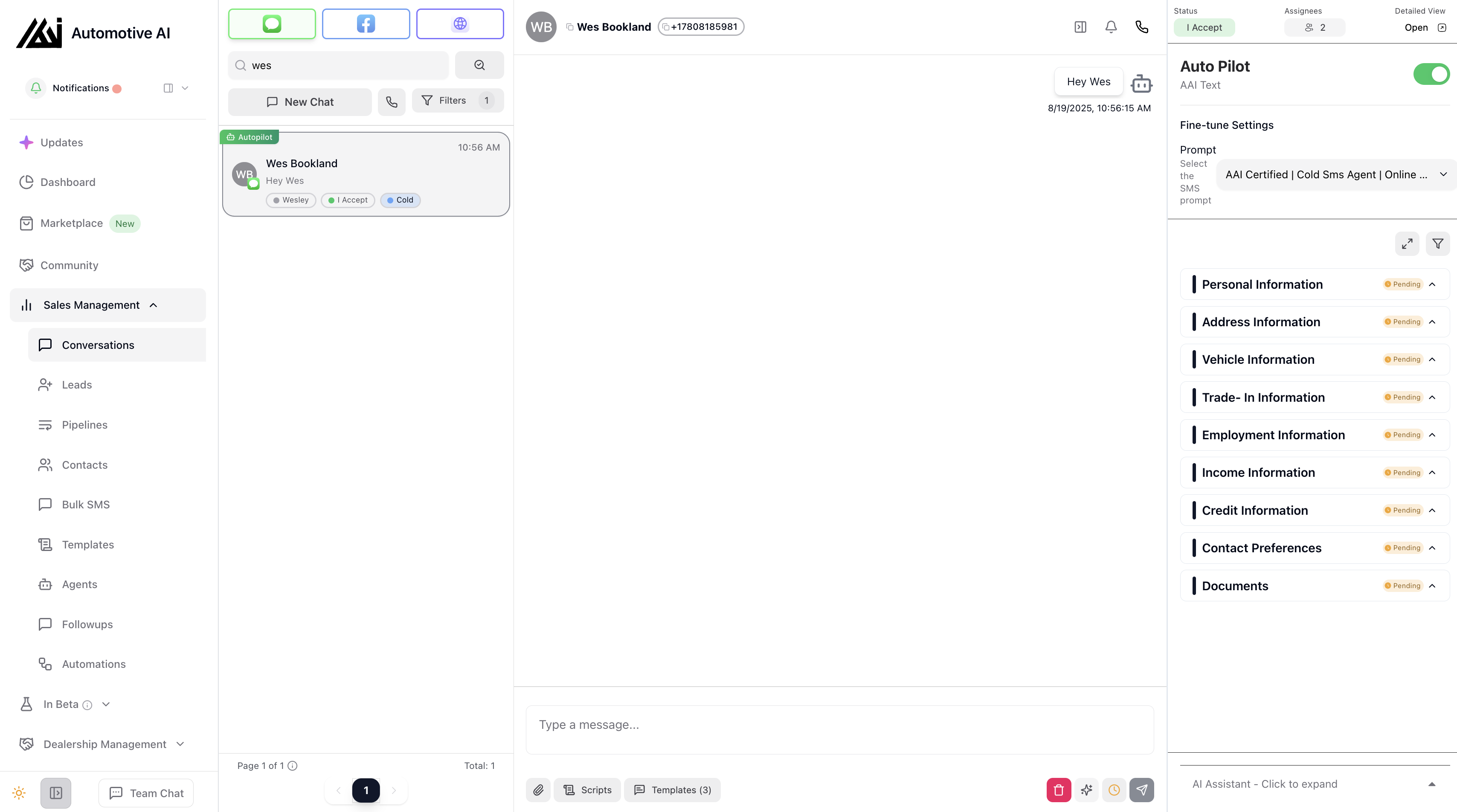
Section titled “How does Conversations work?”List pane: Filter by status (New/Unassigned), search by name/phone, switch platform tabs (SMS/Facebook/Webchat).
Conversation pane: Compose replies, insert Templates, Generate Response, toggle Auto Pilot, select process (agent).
Customer Profile pane: View/edit contact details; toggle visibility (desktop sticky, mobile overlay).
What does the interface look like? (your daily workflow)
Section titled “What does the interface look like? (your daily workflow)”What’s in the left sidebar?
Section titled “What’s in the left sidebar?”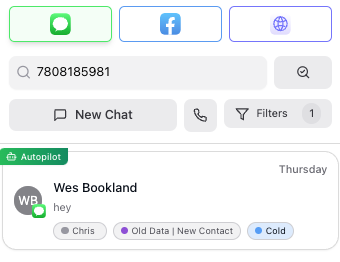
Channel icons (SMS, Facebook (In Beta), Webchat (coming soon)) show all active conversations for the selected channel.

Search bar: search by name or phone. Do not include dashes when searching by phone.
- Example good search: 8255559025
- Bad search: (825)-555-9025

New Chat: requires the contact already exists in Contacts.

Dial pad: place outbound calls (you can dial a number not yet in Contacts, but best practice is to add it first or returned calls will appear as a default new-contact).

Filters: filter by My Contacts, All Contacts, specific team member’s contacts, pipeline stages, or unread only.

How do I use the conversation view?
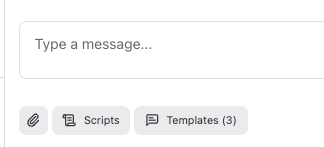
Section titled “How do I use the conversation view?”Middle Pane: shows full conversation history; chat input at the bottom.
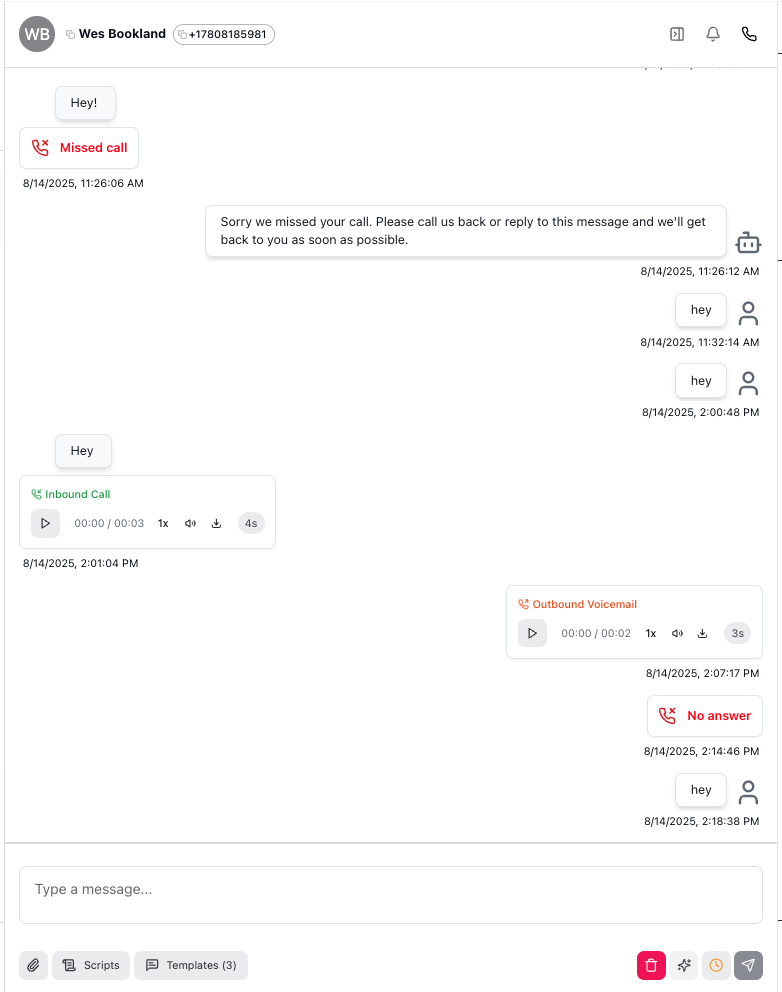
Under the chat input (left):
Attachments: add files to the conversation
Scripts: open call scripts for quick access during phone calls
Templates: pre-load a message template into the input
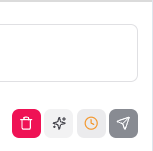
Under the chat input (right):
Garbage icon: deletes the conversation (not recommended unless you truly want to remove the thread or restart an AI testing flow)
Sparkle icon: AI Generated Response. Scrapes the conversation context, reads the selected process, and drafts the same reply Auto Pilot would send—lets you review/edit before sending. If used to follow up, it will generate a follow-up message (ensure your process includes a follow-up sequence).
Clock: schedule a message for later
Paper plane: send the message (Enter also sends)
What are the top bar controls?
Section titled “What are the top bar controls?”Left side: customer name and phone number (click to copy to clipboard).

Right side:
Arrow with sidebar: collapse/open the right information panel
Bell: mark conversation as unread (re-shows the notification marker)
Phone: place an outbound call to the customer

What’s in the right information panel?
Section titled “What’s in the right information panel?”Status chip: aligns with your Pipeline stages; click to change status and keep customers organized by process stage.
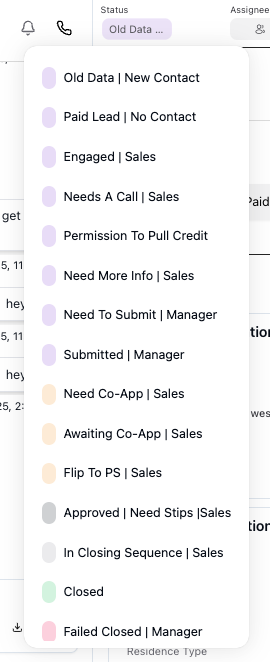
Assignees: assign the contact, active conversation, and pipeline card to other team members. Assignees can send SMS from the true contact owner’s phone number so the customer’s experience is seamless.

Detailed View: all client information and saved documents (e.g., paystubs, credit bureaus, trade photos).

Auto Pilot toggle: turn Auto Pilot ON/OFF as needed. The selected process directly underneath defines the agent’s behavior.

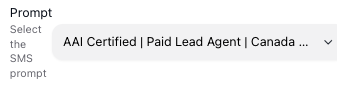
Prompt (Process): the agent/process that powers AI-generated messages—select the correct one for the lead source and stage.
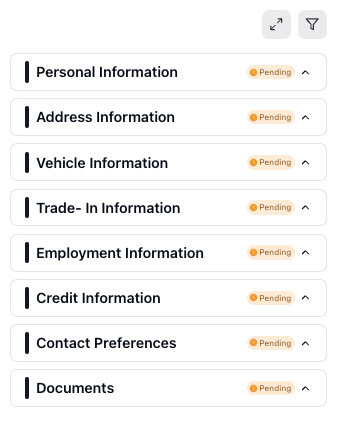
Two arrows: collapse/open information panels.

Filter: hide/show specific information panels.
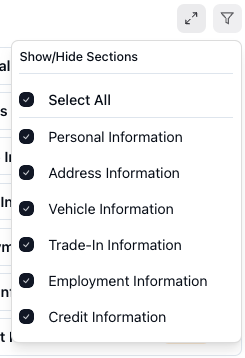
Information Panels (Data Sections): defaults are provided at account creation; fields can be added/hidden/removed at Dealership Management → Dealership Configuration → Data Sections.
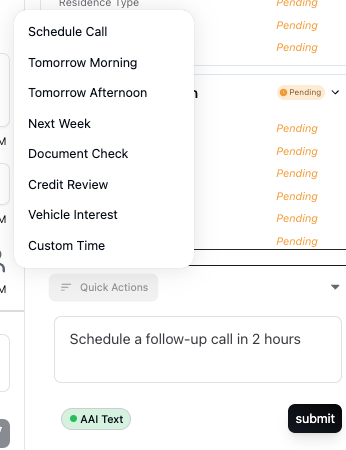
AI Assistant (Click to Expand): At the very bottom: quick actions to set internal reminders (e.g., follow up for paystubs, call co‑applicant).

Select the Arrow Up → Select Quick Actions
How do I optimize my workflow in Conversations?
Section titled “How do I optimize my workflow in Conversations?”1. How do I prioritize conversations?
Section titled “1. How do I prioritize conversations?”- Select a channel in the left sidebar (SMS, Facebook (In Beta), Webchat (coming soon)).
- Use filters: Unassigned, New, unread only, by team member, or by pipeline stage.
- Search by name or phone (do not include dashes when searching phone).
- Good: 8255559025 | Avoid: (825)-555-9025
- Sort oldest first to meet SLAs.
2. How do I respond to customers?
Section titled “2. How do I respond to customers?”-
If Auto Pilot or Automated Follow Ups are OFF, click the Sparkle (Generate Response) to draft the AI message you can review/edit (same output Auto Pilot would send).
-
Use Templates for common replies when chasing income; attach files as needed; open Scripts for quick call guidance; pre‑load Templates from the composer.
-
Keep tone on‑brand; positive and engaging while personalizing with contact‑specific data.
3. How do I assign conversations and set processes?
Section titled “3. How do I assign conversations and set processes?”- Assign a team member so every thread has clear responsibility.
- Select the correct agent (process) for the lead source using the process selector; this defines how the AI responds (and how Automations interpret context).
- Use Assignees to involve teammates. Assignees can send SMS from the TRUE CONTACT OWNER’s number so the customer experience remains seamless.
4. How do I use automation and advance conversations?
Section titled “4. How do I use automation and advance conversations?”- Toggle Auto Pilot ON for faster back‑and‑forth; the agent replies after the configured response time.
Timing nuances:
- If a client messages while Auto Pilot is ON and you turn it OFF within the response window, the AI may still send that reply.
- If Auto Pilot is turned ON after an inbound message, click Generate Response once to re‑engage; then leave Auto Pilot ON.
- Use the Clock to schedule messages for later.
- Let Automations move status/stage (e.g., Engaged, Needs a Call, DNC, Wrong Number).
5. How do I handle next steps and follow-ups?
Section titled “5. How do I handle next steps and follow-ups?”- Schedule a follow‑up when a next action exists; otherwise resolve or handoff with context.
- Send with the Paper Plane (Enter also sends).
6. How do I maintain profile and data hygiene?
Section titled “6. How do I maintain profile and data hygiene?”- Open the Customer Profile to update fields, confirm phone, and capture notes; keep statuses aligned via the Status chip.
- Configure fields later under Dealership Management → Dealership Configuration → Data Sections.
- Use AI Assistant (bottom of right panel) Quick Actions to set internal reminders (e.g.,call for paystubs, call co‑applicant).
How do I use Conversations on mobile?
Section titled “How do I use Conversations on mobile?”- Use the top-left menu/back buttons to switch between List, Conversation, and Profile.
- If the list disappears, tap back; profile opens as a full-screen overlay on mobile.
What quality checks should I do?
Section titled “What quality checks should I do?”- Every active thread has an owner and a clear next step.
- First response sent within Service Level Agreement (as per dealership)
- Ensure Auto Pilot ‘ON’ or ‘OFF’ is intentional.
- Correct process (agent) selected; stage/status reflects reality.
What are common issues and how do I fix them?
Section titled “What are common issues and how do I fix them?”- Missing or delayed messages → refresh; verify channel connection; check network.
- Profile panel not visible (desktop) → toggle Customer Profile; (mobile) tap back to list.
- Auto Pilot didn’t send → if turned ON after an inbound message, use Generate Response once; then leave ON.
- Wrong process behavior → confirm the correct process (agent) is selected for the contact.
- Can’t assign → verify role/permissions in Users.
When should I escalate issues?
Section titled “When should I escalate issues?”- Provide screenshots and escalate in WhatsApp with desired outcome.
What are the shortcuts and links?
Section titled “What are the shortcuts and links?”- Page: /conversations
- URL: https://app.automotiveai.ca/conversations
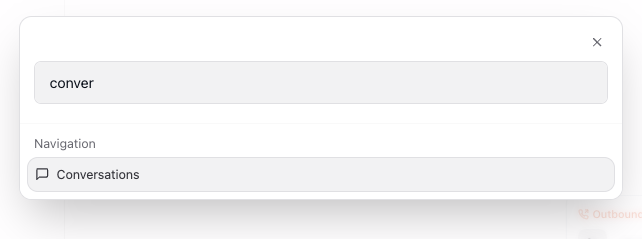
- Open Command Bar: Cmd (Mac) / Ctrl (Windows) + K: Conversations